Amy – your AI assistant
Amy is the AI assistant in ALLMEDIA.AI. She answers questions, creates posts and works with your workspace’s data.
Learning path: Amy, idea finder and media pipelines · 0/6
Learning path
Amy, idea finder and media pipelinesAmy is the assistant in ALLMEDIA.AI. You write to her in plain language; she reads and creates content in your workspace. Before deleting, publishing and scheduling, she always asks first.
This page was translated from the German original. The labels in your app are authoritative.
What is this about?
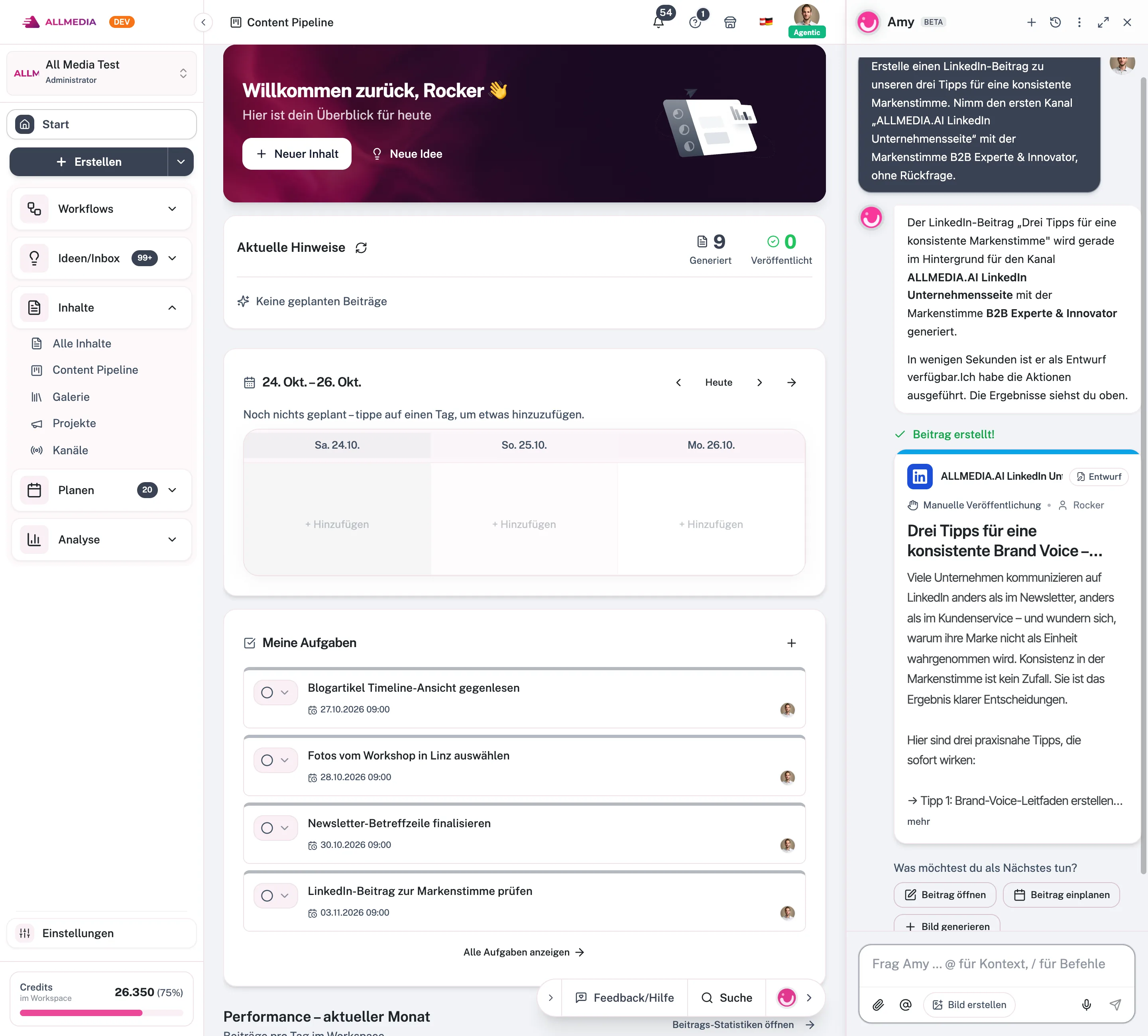
Amy is the AI assistant in ALLMEDIA.AI. She is available in three places: as a global chat, as a post assistant in the editor and as a form assistant in configuration dialogs. Amy knows the data of your current workspace, for example channels, posts, brand voices, target audiences, media and your profile.
Amy carries out reading and creating actions directly. You confirm deleting, publishing, scheduling and bulk actions beforehand. Amy always works with your permissions: what your role in the workspace doesn’t allow, Amy can’t do either.
What Amy can take on
- Posts: create, generate with AI, revise, schedule, publish or delete, including several at once.
- Channels: view, create, change fields and assign building blocks such as brand voice or target audience.
- Brand building blocks: read, create and change brand voices, target audiences, content types and knowledge stores; search the knowledge.
- Projects, stories and tasks: manage campaigns and stories, assign posts, create and complete tasks.
- Ideas: create ideas in the Inbox, view, pause or activate Idea Scouts and News Monitors.
- Media: generate images, search the media library, attach media to posts and start media pipelines.
- Research: search the web, read websites and show News Monitor results.
- Analytics: retrieve key figures of individual posts and summaries.
- Memory and help: remember or forget facts and search the app help.
- Diagnosis: check channel connections when a publication fails.
Confirmation instead of surprises
- Always with confirmation: deleting, publishing, scheduling, bulk creation of posts and forgetting a memory entry.
- Proposal with change comparison: For changes to channels, brand voices, content types, target audiences, knowledge stores and media pipelines, Amy can show a proposal with a before-and-after comparison. You decide what is applied.
- Directly: Amy handles reading, searching and creating new objects without asking.
Step by step
- Open Amy. Click the round button at the bottom right of the app. On a smartphone, you find Amy as a separate tab in the bottom bar.
- Phrase your request. Write your request in plain language, for example “Create a LinkedIn post on the topic of …”. Via Attach files you upload files; via Add context (@) you refer to objects from your workspace.
- Use a direct command (optional). Type
/to choose a command, such as Create post, Create idea, Start web search or Start editorial planning. - Follow and confirm tools. Amy shows which tools she uses. For deleting, publishing or scheduling, you confirm the action.
- Use the results. Click the links in Amy’s answer to jump directly to the right page or the newly created object.
- Adjust text in the editor. In the post editor, use the post assistant for targeted text changes to the open post.
Examples
- “Create three LinkedIn posts about our new product in our brand voice.”
- “Schedule yesterday’s draft for Thursday at 9 a.m.”
- “How did my posts do over the last 30 days? What performed best?”
- “Find current studies on our topic and create an idea from them.”
- “Add the delivery time argument to the purchasing management target audience.”
- “Why couldn’t the Instagram post be published?”
- “Remember: we always write ‘clientele’, not ‘customers’.”
Limits and costs
- Credits: Messages to Amy and her answers use credits. AI tools such as post generation or image generation cost extra. If your balance isn’t sufficient, Amy stops and shows a notice.
- Working storage: Amy keeps website content, found logos and research results for 24 hours in a storage area of the conversation. Only what you explicitly take over or create goes into the media library.
- Long conversations: Very long histories are shortened in the background.
Tips
- If Amy uses several tools in a row, the answer takes longer. You see the interim status in the meantime.
- If no answer comes, send the message again. If that doesn’t help, start a new chat.
- Store permanent rules such as spellings in Amy Memory instead of repeating them in every chat.
Frequently asked questions
Does Amy know my data?
Yes, in the current workspace: channels, posts, brand voices, target audiences, media and your profile. She only sees data of other workspaces if you switch workspace.
Can Amy change things without asking?
She carries out reading and creating actions directly. You confirm deleting, publishing and scheduling beforehand.
Related articles
checked against app version 2.29.1245
Your progress is only saved in this browser.