How the AI in ALLMEDIA.AI works
From one idea, ALLMEDIA.AI creates a suitable post for each channel. The channel supplies brand voice, target audience, content structure and knowledge.
Learning path: Ready to go in 30 minutes · 0/5
On the “Create” page you describe your topic, choose channels and click “Generate”. The AI writes one draft per channel using that channel’s settings. Alternatively, you write it yourself in “Create Manually” mode.
This page was translated from the German original. The labels in your app are authoritative.
What is this about?
ALLMEDIA.AI does not create content out of nothing, but from your settings. This article explains the basic principle. There are four terms you need to know:
- Workspace: Your workspace for a brand, a company or a client. All data is kept separate per workspace.
- Channel: A place where content goes out, for example LinkedIn, a blog or a newsletter. Each channel has its brand voice, target audiences, content structure, knowledge stores, AI model and the channel connection used for publishing.
- Story: The thematic bracket. A story bundles all posts on one topic.
- Post: The finished text for exactly one channel.
When you enter a topic and choose several channels, you get a story with a separate post for each channel. Each post uses the settings of its channel. That is why the same content sounds different on LinkedIn than in the newsletter.
For questions and tasks in plain language there is also Amy, the app’s assistant. Learn more in Amy, your AI assistant.
Prerequisites
- A workspace. ALLMEDIA.AI creates one automatically when you sign up.
- At least one channel. See Create a channel.
- AI generation requires credits. The Free plan includes 300 credits. Details: Understand and top up credits.
Step by step
- Choose a workspace. If you manage several brands, select the right workspace using the workspace selector at the top of the sidebar.
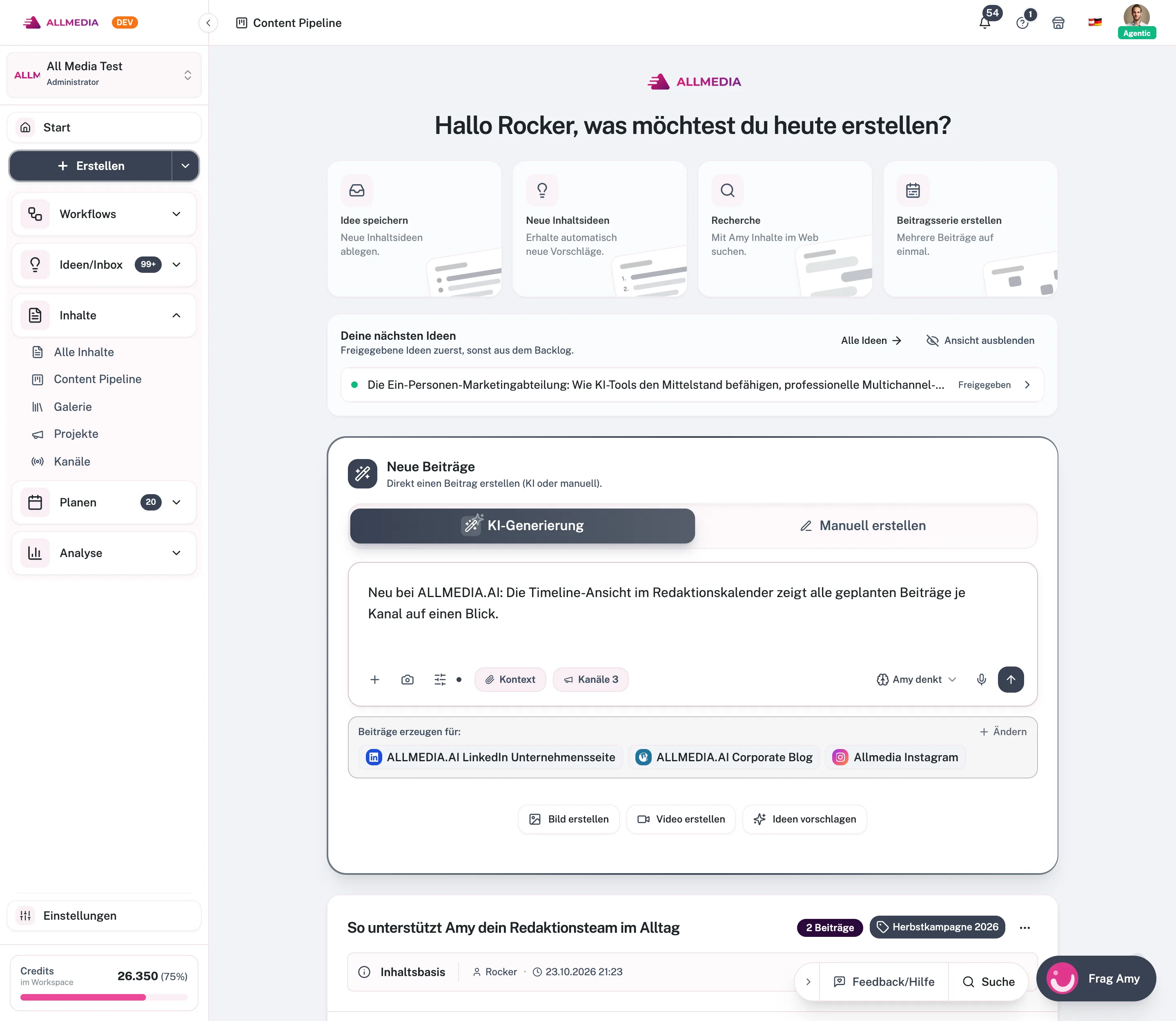
- Open the Create page. Click Create in the sidebar. The page “What would you like to create today?” opens with the Post area.
- Choose a mode. With AI Generation, the AI writes the post for you. With Create Manually, you write it yourself: you give the story a name, choose the channel for each post and type the text.
- Describe the topic. In AI mode, describe in the input field what the post should be about. Use the plus icon to attach images or files. Use Context to provide existing posts, knowledge stores or an idea as a basis.
- Choose channels. Click Select channels and mark all channels that should get a post.
- Generate and review. Click Generate. One draft is created per channel. You find it below the input and under Content → All Stories & Posts. There you edit the text, approve it, publish it or schedule it. Learn more in Publishing content.
What the AI takes into account per channel
- Brand voice: Role, tone, style, emoji and hashtag rules, no-go words. See Understand brand voice.
- Target audiences and content structure: Who you are writing for, and how long the post should be and how it should be structured.
- Knowledge: The knowledge stores linked to the channel and, depending on the setting, your published and scheduled posts. See Knowledge stores.
- Media pipelines: If a pipeline with automatic execution is set up on the channel, an image or video is created as well.
You decide which knowledge sources the AI uses via the slider icon in the input field (Generation Settings).
Tips
- If your result is too generic, first improve the channel’s brand voice and knowledge stores. This affects all future posts.
- Use Suggest ideas below the input field to get topic suggestions and pick one with a click.
- In the post editor, Amy helps you rewrite individual passages in a targeted way.
Frequently asked questions
Does creating posts manually cost credits?
No. Only AI generation uses credits. A manually written text is saved exactly as you enter it.
Can I create posts on my smartphone?
Yes. On small screens, the Create page guides you step by step: first idea or post, then text, dictation or photo, then AI-generated or manual.
Related articles
checked against app version 2.29.1245
Your progress is only saved in this browser.