Creating posts: composer, channels and generation settings
How to create posts in the composer: describe the topic, choose channels, attach context and make targeted use of the generation settings.
Learning path: Ready to go in 30 minutes · 0/5
There is no separate “expert mode”. You control the AI in the composer via channels (with brand voice and content structure), the Amy mode, the generation settings and attached context. One draft is created per channel.
This page was translated from the German original. The labels in your app are authoritative.
What is this about?
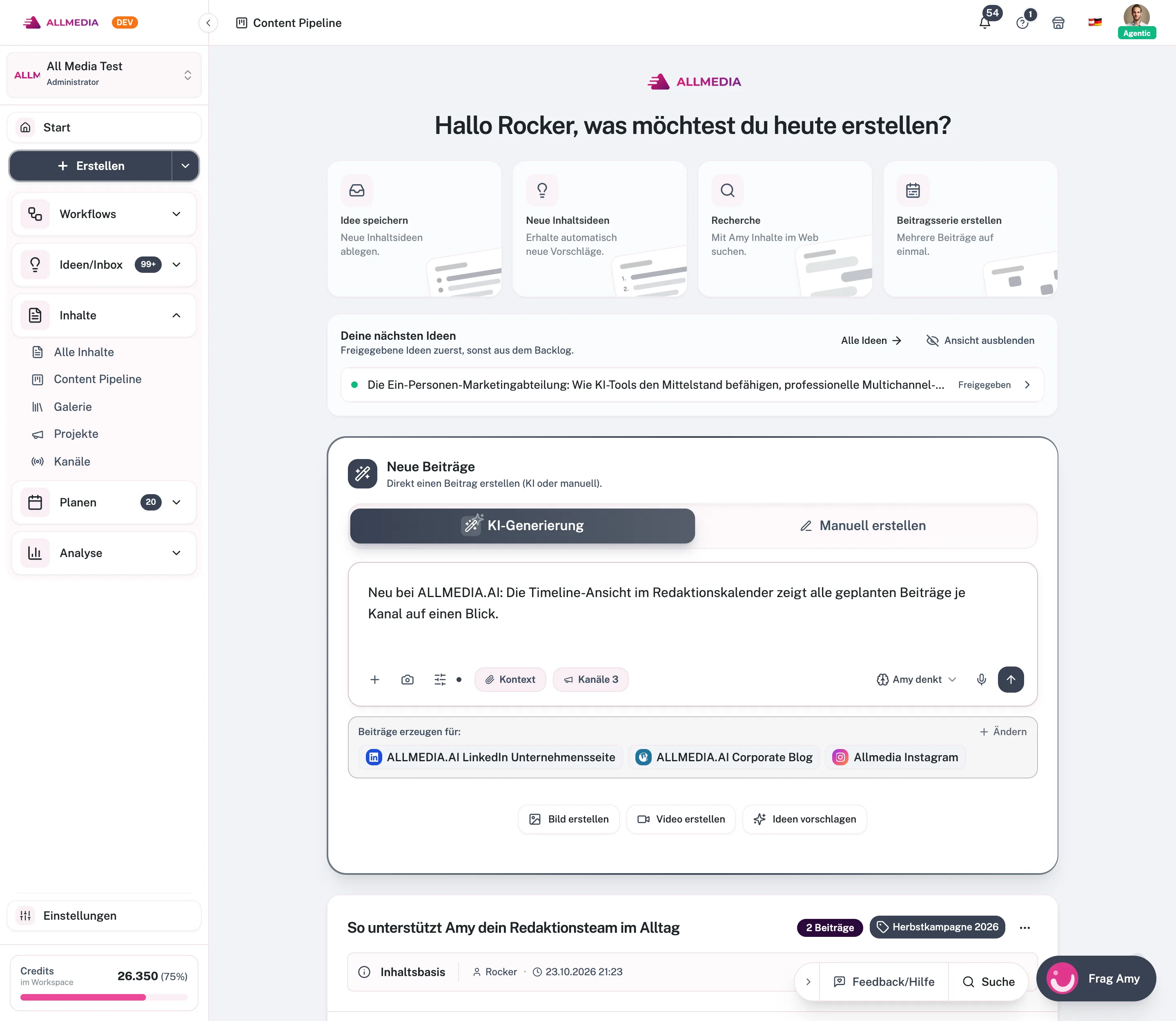
In ALLMEDIA.AI, posts are created in the composer on the Create page. You describe your topic in a few sentences, choose the channels and start the generation. Amy then writes a separate post for each selected channel. In doing so, she uses the brand voice, target audience and content structure of the respective channel.
There is no separate “expert mode”. Fine control is built right into the composer: in the Amy mode, the generation settings, the attached context and the presets per channel. Instead of using AI, you can also write posts manually.
Prerequisites
- At least one channel in the workspace. You can also create a channel directly in the channel selection.
- AI generation requires credits. They are charged per selected channel. How many credits your plan includes is listed under Pricing.
- Your role must be allowed to create content (for example Editor). With the Viewer role you cannot create anything.
Step by step
- Open the Create page. Click Create in the sidebar. The page asks “What would you like to create today?”. Below it is the “Post” box with the composer.
- Choose a mode. At the top of the composer you choose AI Generation or Create Manually. With Create Manually you write the title and text for each channel yourself. This costs no credits.
- Describe the topic. Write in the text field what it should be about, for example occasion, key message and desired action. You can also dictate via the microphone. If you’re missing a topic, click Suggest ideas below the composer and take a suggestion with Use.
- Choose channels. Click Select channels and tick the channels. In the “Select channels” dialog you also define for each channel which brand voice (“Voice”) and which content structure (“Structure”) new posts are created with. This selection is saved to the channel right away.
- Attach context and media (optional). Via Context you attach existing posts, knowledge stores or an idea. Via the plus you choose images from the media library; via the camera icon you take a photo. For images, the app asks whether they should be published along Use as post image or only used as inspiration with Interpret image.
- Check Amy mode and settings. On the right of the composer you choose Amy thinks or Write directly. Via the settings icon you open the “Generation Settings” (see below).
- Generate. Click the arrow button at the bottom right of the composer (in the “Create Content” dialog it is called Generate). One post is created per channel, together in one story. You see the progress in the notification bell. The finished posts are saved as drafts under Content → All Stories & Posts.
Options at a glance
Amy mode
- Amy thinks (default): Amy plans, researches and reasons along before she writes. You can later see how she understood your brief on the story under “Content basis”.
- Write directly: Amy writes straight from your briefing, without research. The research options are then skipped.
Generation settings (apply to the whole workspace until you change them)
- Research: The AI may research topics and gather information. Default: off.
- Include source links: Source links are inserted into the text. Only with research enabled.
- Search rounds: Number of search iterations, 1 to 10. Default: 3.
- AI Knowledge Sources: Knowledge Stores, Published Posts and Scheduled Posts as context. Default: all on.
- Reset to defaults restores the initial values.

What the AI also gets from the channel
- Brand voice: tonality, role, emoji and hashtag usage, no-go words.
- Content structure: structure, length, sample posts and rules for every post.
- Target audience and knowledge stores linked to the channel.
- The platform’s length limit from the channel connection.
You maintain these building blocks under Settings → Content & channels or in the channel canvas.
Other ways to a post
- From a story: Via Add post you add more posts to an existing story (see Revising content and creating variants).
- From the calendar: Via Create → Create content the same dialog opens with the selected date.
- On your phone: Create opens a simplified page: idea or post, then text, photo or dictation, then channels and Manual or AI-generated.
Limits
- Credits are charged per channel. If they are not sufficient, the composer shows “Not enough credits” with the required and available amount.
- You can still use channels whose channel connection exceeds your plan’s limit for generation. Only publishing is blocked then.
- Images are only created automatically if a media pipeline with automatic generation is linked to the channel.
Frequently asked questions
Is there an expert mode?
No. The advanced controls are the Amy mode, the generation settings, the context in the composer and the channel presets for brand voice and content structure.
How long does generation take?
Usually a few seconds to about a minute per post. If a post gets stuck, the app resets the job itself or marks it as failed. The error text is shown on the post card.
Can I take over finished texts without AI?
Yes. Choose Create Manually. The text is saved word for word, without brand voice and without credits.
Related articles
checked against app version 2.29.1245
Your progress is only saved in this browser.