Content creation with ALLMEDIA.AI: from briefing to approved post
The whole route in ALLMEDIA.AI: set up a channel, find a topic, create, revise, schedule, approve and publish posts.
Topic area: Create content
Topic area
Create content- Creating posts: composer, channels and generation settings
- Implementing recurring formats with templates
- Revising content and creating variants
- Hashtags, mentions and calls to action
- Managing the Gallery (media library)
- Generating images with AI
- Organizing media with folders and tags
- Idea Scout – automated topic research
- Managing the idea inbox
- Set up the News Monitor
- AI Studio: AI images, AI videos and carousels
- Media pipelines for automatic images
- Automate post-processing
- Content creation with ALLMEDIA.AI: from briefing to approved post
- Set up a media pipeline
You set up channels with brand voice, target audience and content structure once. After that, you describe a topic in the composer, Amy writes a draft per channel, you revise it, schedule it and have it approved if needed. The app publishes automatically at the scheduled time.
This page was translated from the German original. The labels in your app are authoritative.
What is this about?
This guide shows the complete route by which an idea in ALLMEDIA.AI becomes an approved and published post. It summarizes the individual steps and refers to the relevant articles for details.
The principle: channels set up properly once supply brand voice, target audience and format with every generation. In everyday work, you only describe the topic. Amy, the AI assistant of ALLMEDIA.AI, writes a draft per channel. You decide what gets published and when.
Step by step
- Set up a channel (once). Create one channel per platform or format and link brand voice, target audience, content structure and, if needed, knowledge stores. From Template helps to get started. To publish, the channel needs a channel connection. Details: Create a channel, Understand brand voice, Defining content structures.
- Define a format for recurring content. You create recurring formats as a content structure and attach them to the channel. Hashtag rules belong in the brand voice, calls to action in the content structure. Details: Implementing recurring formats with templates, Hashtags, mentions and calls to action.
- Find a topic. Below the composer, Suggest ideas suggests topics. The Idea Scout and the News Monitor deliver new topics continuously. Details: Idea Scout, Set up the News Monitor.
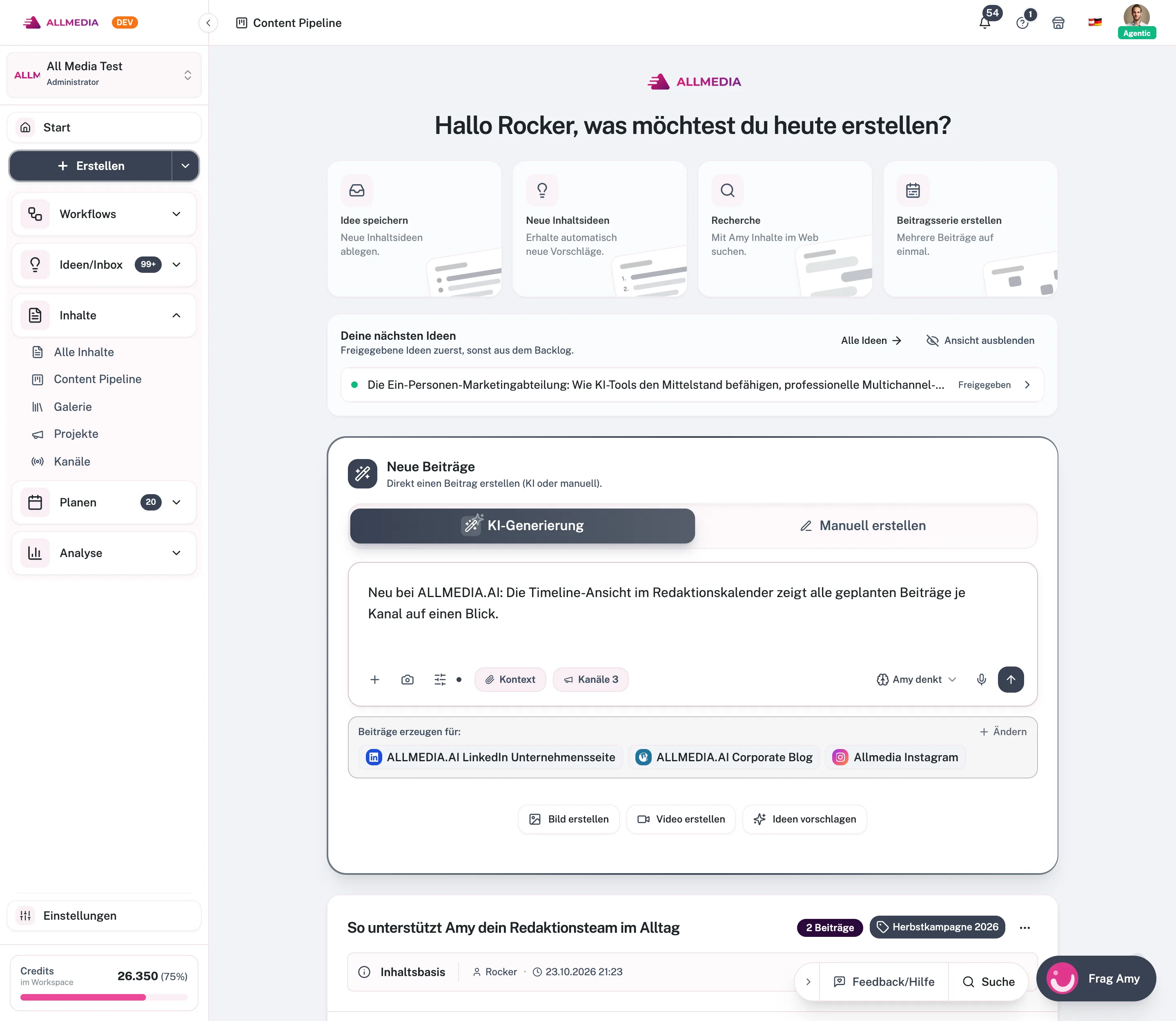
- Write the briefing in the composer. Open Create, describe occasion, key message and desired action, and choose the channels. Via Context you attach existing posts, knowledge stores or an idea. In the generation settings you control research, search rounds and knowledge sources. Details: Creating posts.
- Create drafts. With the send button, Amy writes one post per channel. All posts on the topic are together in one story under Content → All Stories & Posts, each as a Draft. AI generation costs credits per channel.
- Revise. Edit the text directly, request changes in the Amy tab or have it rewritten with Regenerate. You add further variants with Add post. You add images from the media library or create them with AI. Details: Revising content and creating variants.
- Schedule. In the post, under Publish, you choose a date via Schedule. In the Calendar you see all dates and move them by drag and drop. Details: Publishing content, The calendar.
- Have it approved. If the approval workflow is active, the scheduled post changes to Awaiting approval with the configured lead time. The approvers decide in the app or via email link. Approved means: Scheduled again. Rejected means: back to Draft with a reason. Details: Approval workflows.
- Publish and evaluate. At the scheduled time, the app publishes automatically via the channel connection. The label on the post shows the status. You see the results in the post statistics. Details: Understanding post statistics.
Common mistakes
- Channel without content structure or brand voice: The AI then writes following a general pattern. Link both before the first generation.
- Briefing too short: One sentence without occasion and goal results in generic texts. State key message, target audience and desired action.
- No channel connection: Without a connection, a scheduled post is only scheduled internally and not published automatically.
- Lead time too short: Schedule posts so that approvers have enough time. Without a response and without auto-approval, nothing is published.
- Publishing unchecked: Read every AI draft before scheduling. For mandatory reviews, enable the approval workflow.
Frequently asked questions
Do I have to write a separate text for each channel?
No. One briefing is enough. Amy creates a separate post for each selected channel, adapted to brand voice and format.
Can I work without AI?
Yes. In the composer you choose Create Manually and write the posts yourself. This costs no credits. Scheduling, approval and publishing work the same way.
Are there multi-stage approvals?
No. The approval workflow has one stage. You define which people or roles may approve.
How many credits do I need?
AI generation costs credits per channel. How many credits the plans include is listed under Pricing.
Related articles
checked against app version 2.29.1245
Your progress is only saved in this browser.