Editorial planning with the planning assistant
From channels, time range and topic, the planning assistant creates an editorial plan with storyline, strategy and one post idea per date.
Learning path: Plan, approve, work as a team · 0/7
Beta feature. The ALLMEDIA team enables Editorial Planning; it is not visible by default.
Under Ideas/Inbox → Editorial Planning you choose channels, time range, frequency and topic. The assistant suggests storyline and strategy, creates a plan with post ideas from them and, if you like, the finished posts.
This page was translated from the German original. The labels in your app are authoritative.
What is this about?
If you publish regularly on several channels, you need a plan. The planning assistant does the groundwork for you: from channels, time range, frequency and topic it develops a storyline, suggests suitable strategies and distributes concrete post ideas across the dates. You then turn the ideas into real posts that land in the calendar.
Prerequisites
- At least one channel in your workspace.
- Enough credits: research, storyline, strategy and creating the posts use credits. Without a balance, the assistant points out that you need to top up credits first.
Step by step
- Start planning. In the sidebar, open Ideas/Inbox → Editorial Planning and click Start planning in the New Editorial Planning card.
- Select channels. Choose the channels the plan should apply to and click Next.
- Set time range and frequency. Choose start and end date or a Quick range from today (Next 2 weeks, 1 month, 3 months, 6 months). The time range must cover at least 7 days. Under Posting Frequency you choose Daily, 2x per week, Weekly, Every 2 weeks or Monthly.
- Define the topic. Choose Specify topic and describe your topic, or choose Research trends and get topic suggestions from current sources. With Refine with Amy you sharpen the topic in the chat. Then click Start planning.
- Choose storyline and strategy. The assistant suggests storylines with story arc, topic pillars, key messages and target audiences. Choose the right one and then a strategy; the most suitable one is marked Recommended. Continue with Continue to Preview.
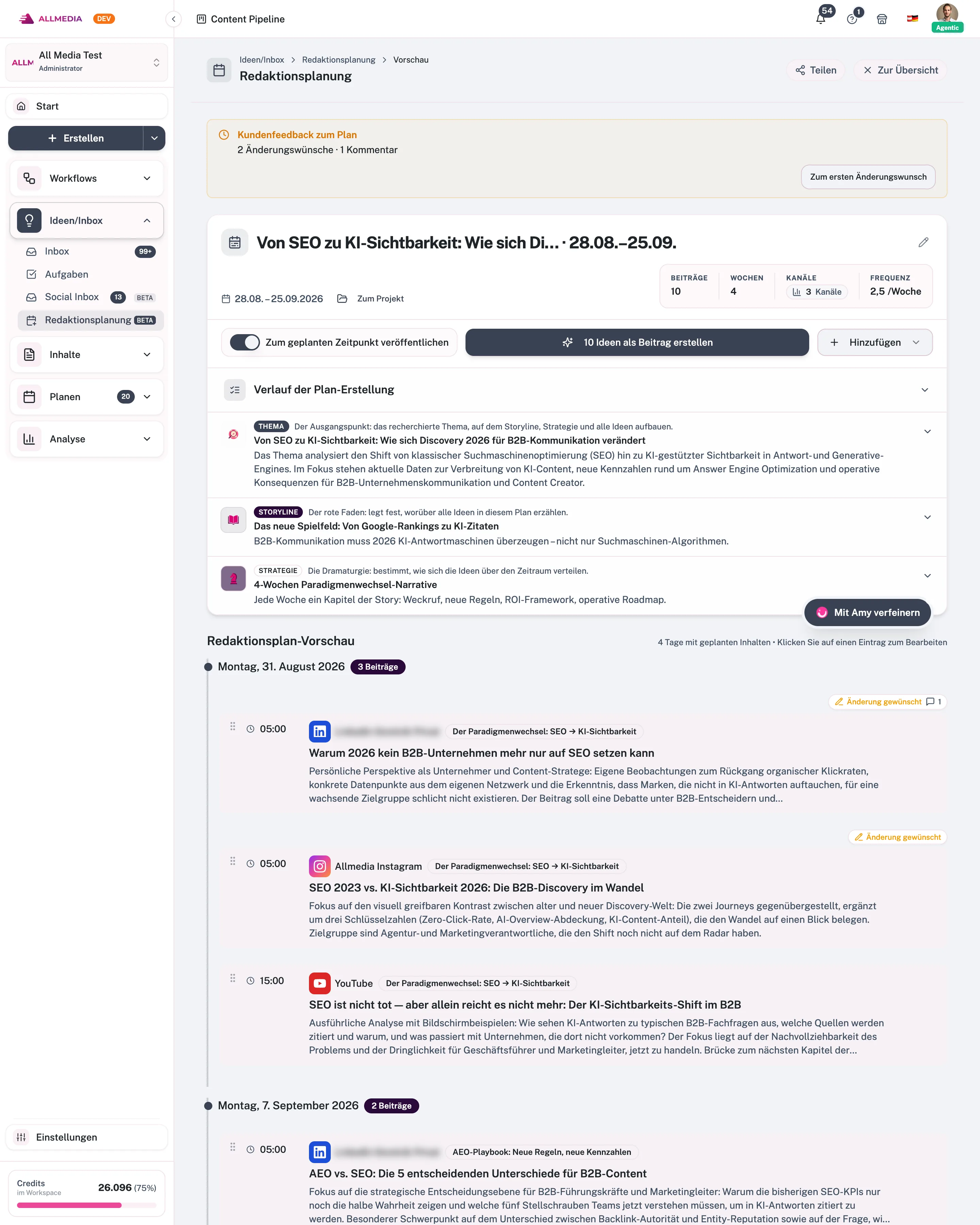
- Edit the plan in the preview. In the Editorial Plan Preview you move ideas to other dates, edit or delete them. Via Add you choose Add post idea or Add existing post.
- Create posts. If needed, switch on Publish at the planned time and click the Create … ideas as posts button (with the number of open ideas). You create a single idea via Generate post on its card.
Options at a glance
- Refine with Amy: Amy adds, moves or changes entries and revises topic, storyline and strategy. Her changes appear directly in the plan.
- Include existing posts: With Add existing post you take finished content into the plan without new text being created.
- Change the schedule afterwards: If the posts have already been created, Activate schedule sets them to the planned time; Remove schedule sets them back to draft.
- Share: Via Share you invite a person to the plan by email with Invite client (validity 7, 14 or 30 days). The guest sees the plan read-only, can approve each idea or request a change, and comment. You can resend, extend or revoke access.
- PDF export: Export as PDF creates a report of the plan with the workspace logo, optionally with storyline and strategy.
- History: Under All Editorial Plans you open, continue, rename, archive or delete earlier plans.
Limits
- The time range must be at least 7 days. For more than 4 weeks, the assistant also researches to find enough different ideas.
- As soon as you schedule ideas for the first time, the assistant creates a project for the plan. You can only add existing posts after that.
- If you cancel an ongoing process, the plan is marked Cancelled. Posts already created are kept.
Frequently asked questions
What can I do if the progress stalls?
Reload the page. The planning continues in the background; the view catches up with the current state.
Does the plan remain editable after the posts have been created?
Yes. You can reopen the plan via the history at any time, add ideas and create more posts.
Related articles
checked against app version 2.29.1245
Your progress is only saved in this browser.